
Any and all advice, guides, and reviews are unbiased and based on my personal experience. If you buy through affiliate links, I may earn commissions, which helps support my website. This does not have an impact on posts or my opinion of any reviewed products. If you find this post helpful and want to say thanks, please buy me a coffee or take a look at my book on Amazon. It keeps this page ad-free. Thank you!
This is an unbiased and honest review of the LAMTTO 11″ Wireless CarPlay/Android Auto Display (Model RC32) and is based on my own experience setting this up in an early 1990s Ford SUV. Let’s see if the LAMTTO RC32 is the best smart upgrade for an older car?
First, the LAMTTO RC32 CarPlay/Android Auto Display is, in basically an 11″ Android Tablet with an OS optimized for in-car use. It’s best suited to cars that don’t have “smarts” but do have, at the least, Bluetooth Audio – because while the LAMTTO RC32 does have built in speakers, audio quality is 100x better via your car speaker system. You will also need a working 12V Accessory Plug, as the unit is powered by this directly and not hardwired into your OBD port (even if you use the included reversing camera).
The promise of the LAMTTO 11″ Wireless CarPlay/Android Auto Display is it’s a plug and play upgrade that can immediately modernizes the entire driving experience. The setup is easy, it is designed to work on any car, and you don’t need to worry about Head Unit compatibility etc. as it’s basically a stick-on replacement (reminds me of those old TomTom navigation units). After spending the weekend with the LAMTTO RC32, it’s one of the easiest ways to upgrade old car tech and treat your car to Android Auto or Apple CarPlay.
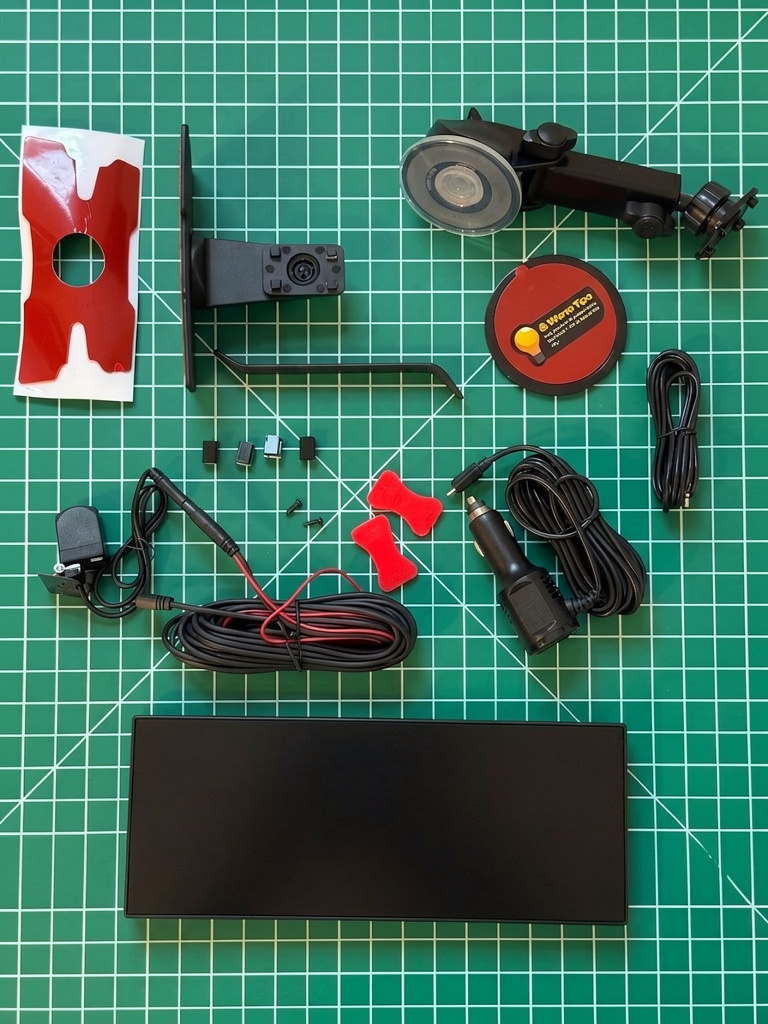
In the LAMTTO Wireless CarPlay/Android RC32 box:
Initial thoughts are that the LAMTTO RC32 looks good, it looks and feels premium, in the box you will find:
- LAMTTO RC32 11″ Wireless CarPlay/Android Device
- 12V USB C Charger (ample cable); also has a spare USB A port
- 2 x mounting units, either dash mount or windscreen
- 2 x mounting adhesive pads for either dash or windscreen mount
- 1 x reversing camera with screws and mounting pads
- 4 x cable tidy clips (if you need more, I used these ones I had left over from Amazon)
- audio cable (optional, you can also just Bluetooth to your car audio, which is what I did)
There are 4 ports on the left side, USB C (power), AUX Audio, microSD slot and an input for the camera.
Setup & Installation
Setup of the LAMTTO RC32 screen, if you use the screen only (not the optional reversing camera) is easy. It’s effectively plug‑and‑play, there’s no OBD connection, no panel removal, and no technical expertise required. If you can plug in a 12V adapter and USB C cable, you can install the RC32 in your car.
On the first power up you are prompted to select your language (English, Chinese, French, and more are supported); Region (US, Canada, Mexico, and more); and Navigation Bar driving position when using CarPlay or Android Auto (left is best for the US). you then get some safety and reminder prompts, and you are ready to go.
You’re then greeted by the home screen which is powered by a custom Android Launcher (TcLauncher). I wish I could take a screen screenshot or photo without my reflection ruining it – but the screen is reflective and you don’t need to see me!
The default LAMTTO RC32 Android screen shows:
- Now Playing (Music)
- CarPlay/Android Auto Shortcuts
- YouTube and Netflix Apps
- Assortment of Android Apps including Google Play Store
Between use i.e. if you turn off your car and come back, the LAMTTO RC32 goes straight to the home screen or CarPlay/Android Auto. This means it has some sort of memory, and you don’t need to do the setup steps again each time.
Mounting the LAMTTO 11″ Auto Smart Display
First, all ports are on the left side (USB C power, audio, reversing camera, and microSD), which may bother cable‑management purists. You get two choices for mounting, a dash mount or windshield mount.
I opted for the windshield mount. This is a suction mount with a lever to really create a strong connection. The mount telescopes and has a ball joint where the RC32 attaches so you can optimize your viewing angle (and reduce glare). I prefer this style of mount as it’s easy to pack the LAMTTO away when parked outside overnight.
In road use, the windshield mount was solid, on highways and with stop-starts it didn’t vibrate or shake loose.
Software & Performance
This is where the unit distinguishes itself. Unlike your car, the LAMTTO RC32 is a full Android device with Google Play. This means if you don’t use CarPlay or Android Auto you can still:
- install apps directly from Google Play
- download offline maps and then navigation works even without your phone*
- Spotify and streaming apps run natively
- you can browse the web, manage your Google account, and use Gemini AI, etc.
This is pretty cool!
* a note about offline maps, there is enough storage for offline maps but you will need to be on WiFi or tethered to your phone to download a map. There’s 64Gb of onboard memory, which is more than enough for offline maps. I managed to download 3 US states. You don’t need a microSD for offline maps.
LAMTTO RC32 CarPlay Experience
I’m an iPhone user, so I am only interested really in using the LAMTTO RC32 with CarPlay. This is a one-time setup, tap the CarPlay button on the RC32, pair using Bluetooth, then follow the prompts on your iPhone. Then, like magic, the screen shows the Apple CarPlay experience, and the Android OS is hidden. You can get back to the Android OS underlay by tapping the Home icon that shows on CarPlay (and you do need this for audio setup).
I will say I need to pair twice, there was a brief message about WiFi but then it connected (may be user error, as I never saw this message again after several days of testing). The RC32 remembered I was connected between when I turned the car on/off but you do need to tap the CarPlay button to launch on restart, you just don’t have to re-pair. Same as what you experience on a factory CarPlay unit.
In CarPlay mode, apps launched quickly, swiping was smooth, and there were no freezes or crashes during use. True CarPlay is the big reason why you would get the LAMTTO RC32 because you get proper CarPlay split-screen modes e.g. can show maps, music, etc. all at once.
LAMTTO RC32 Audio Playback and Connectivity
There are 4 ways you can get your audio from the LAMTTO RC32 Wireless Car Smart Display
- Bluetooth Audio (dual Bluetooth, one for CarPlay connection, one for audio)
- FM Radio (yes, truly)
- Aux Cable
- Built In Speakers
If we go through the options, the built-in speakers in the RC32 are not good – maybe OK for navigation but not if you want to listen to Spotify. The FM option is OK but I got occasional interference. The BEST option is to use the Bluetooth Audio and to pair the LAMTTO RC32 directly to your car. This is lag free and you good audio fidelity. I couldn’t test the aux cable method, as my car doesn’t have an aux port.
To setup the Bluetooth (or FM) audio pairing to your car, you can find this in Settings – Transmit to car Bluetooth; alternatively (and best way) you can click the speaker looking icon in the top right corner of the home screen and this lets you choose between Local Speakers, BT Transmitter, FM, or Aux.
Seriously use Bluetooth – you’ll thank me later.
Optional Backup / Reverse Camera and Recording
There’s an included (but optional) reverse camera. I opted out of this, as it requires you connecting wiring to your backup reversing lamp and running the wiring back to the LAMTTO RC32. I did a test, out of interest. The camera quality is surprisingly clear. There are distance markers, but they (obviously) don’t shift according to the angle of your steering wheel. The reverse camera auto activates when you go into reverse (provided you connect it to your reverse light positive terminal) and it will bump you out of CarPlay when reversing. The Camera does have a rolling DVR function, but you need a microSD card to use this feature (microSD not included).
But and this is important; it’s 100% OK to use the RC32 without camera.
LAMTTO Wireless CarPlay/Android RC32 Hardware and Specs
As the LAMTTO RC32 is a full Android tablet, I was able to go into Settings and get the full hardware specs, plus it also has full Chrome, so I could do an FPS test. First, the 11″ screen is bright and sharp and is set to a widescreen aspect ratio. The screen is reflective, which may bother some people – but was no problem for me, as the screen is very bright and I was able to get a good car viewing angle with the windshield mount.
- 11″ screen supports 6o FPS (tested using testufo.com on the inbuilt Chrome browser)
- Android 15
- Allwinner A537 8 Core Processor (a good mid-range processor)
- 4Gb Memory
- 64Gb Storage
- microSD supported (no microSD included, if you need one, I use these)
As I am more technical than most, I did go into Settings-System updates to check for a software update. There was one (as of May 2026) and it updated to a custom Android Build version 2026-04-17 1776398911. I did this connected to my home WiFi while in the driveway – faster than tethering in my experience with any car device. I’m not sure what the OS upgrade does, as there were no release notes but I didn’t see any change in the UI.
LAMTTO Wireless Car Smart Display Everyday Use
In daily driving, I haven’t had any issues or complaints. The 11″ screen is great and feels spacious, it’s fast and instant on with the turn of the ignition. CarPlay is fast and responsive, and it on and older car, the upgrade is transformative. It makes a 10–15‑year‑old vehicle feel genuinely modern.
What Could Be Better
No product is perfect. The main areas for improvement:
- the reflective screen may not be to everyone’s liking; you could get screen glare in bright conditions (wish they had a matte screen protector)
- the left‑side port placement may annoy some users; in fact I wish the USB C port was right angled as it would help with keeping cables neat
- the Screen Mount isn’t quick‑release; making removal less convenient, so you have to remove the entire mount.
- it would be cool if you could optionally use the camera as a front recording dashcam, which I think you technically could as the camera does power up without being connected to the reverse light.
These are minor issues in an otherwise very good product.
Final Thoughts
The LAMTTO 11″ Wireless CarPlay/Android Auto Display (RC32) is surprisingly polished, and easy upgrade to your older car. If you’re ever looking in envy at cars with wireless CarPlay/Android Auto, you can get the same without the need to buy a new car plus the flexibility of a full Android tablet. I actually love that you can use it fully offline and not tethered to anything, connect it to WiFi, download your maps and your music, and you’re set. For anyone driving an older car or simply wanting a larger, more capable screen the LAMTTO 11″ screen is a worthwhile upgrade. You can get the RC32 on Amazon or direct from LAMTTO.
LAMTTO Discount Code
If it helps, I also found a discount code for the LAMTTO RC32 where you can get 10% until August 2026. Use this code L2RZVMHA on Amazon.
Hope this helps someone else!
Any and all advice, guides, and reviews are unbiased and based on my personal experience. If you buy through affiliate links, I may earn commissions, which helps support my website. This does not have an impact on posts or my opinion of any reviewed products. If you find this post helpful and want to say thanks, please buy me a coffee or take a look at my book on Amazon. It keeps this page ad-free. Thank you!