
Any and all advice, guides, and reviews are unbiased and based on my personal experience. If you buy through affiliate links, I may earn commissions, which helps support my website. This does not have an impact on posts or my opinion of any reviewed products. If you find this post helpful and want to say thanks, please buy me a coffee or take a look at my book on Amazon. It keeps this page ad-free. Thank you!
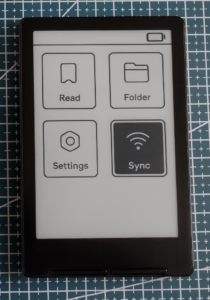 I am a fan of eInk devices having owned a Kindle since forever, the Remarkable 2 and Remarkable Paper Pro Move (and even the original Pebble watch). All of which means when the XTEINK X4 became available I had to get my hands on one. The 4.3″ sized form factor was the big drawcard for me. If you’re after an XTEINK X4 yourself, you can’t (yet) find them on Amazon, your options are either direct from XTEINK for about US$69 + Shipping or AliExpress. I opted for AliExpress as it worked out cheaper. If you’re in the US and buy from AliExpress, make sure you check the seller includes any import duties.
I will state up front, the X4 is not a replacement for a Kindle. It’s a fair bit slower, there’s no backlight, and page turning is slower and the software is less than perfect. It’s more about the joy of reading on something that’s so pocketable, distraction free, and a little bit different from everyone else. If that sounds like you, then get an X4.
If you’re trying to decide between a black X4 vs white X4, that’s really a matter of personal preference. The black typically sells for $5-$10 less on AliExpress. I originally purchased the black (as pictured) but have since also picked up a white one. The white is more off-white than white, the white is almost the same color as the eInk screen. If you plan to buy from AliExpress, keep in mind Chinese New Year 2026 holidays begin Feb 17th and run until March 3. So orders close to and between these dates will be delayed.
Getting Started Guide for XTEINK X4
This getting started guide and FAQ is for new owners of an XTEINK X4 and covers things that were helpful for me and hopefully others. This guide covers everything new (or experienced) X4 owners need to know or would be a typical FAQ including, WiFi setup, changing the X4 language to English, file transfers, custom firmware, file conversions, XTC file format conversion, other useful tools, and aftermarket and 3D printed accessories
This XTEINK FAQ blog post is grouped into the following sections:
- Set the X4 language from Chinese to English
- How to setup WiFi on the X4
- How to update the X4 firmware
- List of custom firmware available for the X4
- How to transfer files to your X4
- List of useful tools, websites, apps for your X4
- Best file conversion settings for your X4
- List of X4 Accessories and 3D printed X4 cases
- What about the XTEINK X3?
If you need help on something not listed here including navigating your X4, etc. the official X4 user guide is here.
Out of the box, you should fully charge your X4 (about 2-3 hours), fix the language (if you didn’t get the international version), then setup WiFi and update the official firmware.
How to Change the Language on the X4: Changing from Chinese to English
If you purchased from AliExpress, you may find your X4 is in Chinese, you can change to English via settings. How to change your X4 from Chinese to English is the top of the FAQ for all new users.
- From the home screen, navigate to and select the gear icon.
- From the Settings menu, the language option will be the first item selected.
- Press OK (this is the right edge of the left face rocker) to change the UI language to English.
How to Setup WiFi on the X4
- Go to Sync – Network Connection.
- Select your WiFi network.
- Enter your password.
- Long press the Back button to exit the menu.
How to Update the Firmware on the X4
Once your X4 is setup on WiFi:
- Navigate to Sync, then System Update.
- Wait (be patient!) for the update to complete (watch for 100% progress).
- After the update: Open any book, press OK to access the menu, then select Index to rebuild the index.
You’re all set! Now onto making a decision about your default firmware.
XTEINK X4 Firmware (Official and Custom)
Official Firmware: The official version of the firmware is available from XTEINK direct. If you buy from AliExpress, your X4 may be set to Chinese not English. This can be changed in the software via Settings; you don’t need new firmware although the international firmware does have better font support. If you have the Chinese firmware, you can flash your X4 with the international firmware via the Crosspoint tool just select “Flash English Firmware”. The current official firmware as of November 2025 is V3.0.2.
Crosspoint (Recommended): There’s an excellent community-built firmware called Crosspoint. Even if you’re not technical, it’s easy to install. I recommend reading the Github to understand more, but flashing of Crosspoint can be all done via the web at this page. Yes, you can downgrade back to the official firmware if you don’t like Crosspoint. I think Crosspoint is superior to the official firmware. I can’t recommend Crosspoint enough. Future versions of Crosspoint also support themes!
Papyrix: Papyrix is a fork of Crosspoint. It’s a bit more lightweight and in some areas, more user friendly. Although that doesn’t extend to installation. You will need to install it from the command line using the Papyrix flasher tool.
SUMI (Beta- Experts Only): SUMI has great potential but it’s definitely a Beta firmware. Has weather, games, and much more. But it’s in the very early stages and I’d only use it if you’re a developer and OK with something that’s buggy. Crosspoint is much more stable. But SUMI has so much promise. You can install SUMI firmware via the web.
TRMNL: This is not as a reader, TRMNL makes your X4 a distraction free second screen, device for displaying useful info. Super cool, read the instructions and decide if it’s for you. You can flash TRMNL using their own web flashing tool.
Microreader: Microreader has less active community support than Crosspoint (2 vs 30+ contributors). It’s more minimalist in features. I recommend Crosspoint.
Transferring Files to your X4
The fastest and easiest way is to plug the microSD card into your computer. This is also a good time to remind you that you should buy a replacement (and reputable) microSD card and not use the included 32Gb card. The included card can either overheat or fail. In late 2025 XTEINK switch to 16Gb cards as part of the overall memory crunch. Grab yourself a Sandisk 256Gb card (way more than enough, max supported size is 512Gb) and this microSD card reader which supports both USB A and USB C – so good for Windows and Mac devices.
FYI, the microSD card must be formatted as exFAT.
You can transfer files to your X4 via WiFi but honestly, the direct file transfer method is faster, easier, and more reliable. If you want to transfer via WiFi, you have to browse to the IP address of your X4.
The X4 does not organize folders itself, for the best experience, do not dump everything in the root and create a folder stricture e.g. Books, Comics, Wikipedia, etc. You can have nested folders e.g. Books – Fantasy, etc. do what works for you.
For the best reading experience, I have found converting files to the XTC format is best. I use CR2XT. Even though XTC files are significantly larger than ePubs. That’s why a Sandisk 256Gb card is a good investment.
If you find your X4 getting warm/hot, it can be due to the default microSD card not being the best, so, seriously get a better microSD card.
Tip: You cannot transfer files to the X4 via USB C, the USB C cable is for charging only.
Useful Apps, Tools, and Websites for your X4
I’ll keep adding to this over time, but here’s some useful sites to bookmark. Sites are listed alphabetically, not in order of recommendation or preference. Going to state this up front, the X4 requires files to be DRM free, so you can’t convert your Kindle purchases.
There is official iOS app by XTEINK for the X4, you can find it here.
Browser Plugins
- Send to X4 is a Chrome plugin that sends a webpage to your X4 via the WiFi connection. If you want to get involved and develop it, check the Github.
Calibre
The assumes you know or use Calibre, the best cross-platform tool for managing digital libraries on portable reading devices.
- Send to X4 (Calibre Web): A tamper monkey script (best for advanced users) that lets you send EPUBs straight to your X4.
- Calibre CrossPoint Plugin: Adds CrossPoint Reader as a wireless device in Calibre. Uploads EPUB files over WebSocket to the CrossPoint web server.
- Calibre CrossPoint Cover Fix: If your ePub covers are not showing up in Crosspoint, this fix should help.
Document Conversion
I’ve put a table at the end of this post with some advice on best settings when converting files.
- CR2XT: Cross platform (Windows, Mac, Linux) tool that converts EPUB (without DRM), rtf, doc, html, mobi (without DRM), and txt to the XTC format.
- DotInk (iOS only): US$1.99, Lets you convert files direct on your phone.
- EPUB to XTC: Runs in python (so may not be user friendly enough for some people) but works and is fast. There is also a web based EPUB to XTC version (user friendly) if you prefer.
- XTCJS.app: a free online tool for converting MANGA comics (CBZ files) and PDFs to the XTC format. I mainly convert PDFs to the X4.
File Organization
- Fatsort: This is a command line utility and useful if the books on your X4 are not sorting in proper alphabetical order.
Firmware Flashers
A write up of all X4 firmware’s is at the top of this post.
- Crosspoint Firmware: Read the Github first, but this lets you install the custom community driven Crosspoint firmware via a web browser.
- SUMI Firmware: Read the Github, but this lets you install the SUMI firmware via the web.
- TRMNL Firwmare: This is you want to turn your X4 into a distraction free eInk device for display other information. Learn more about TRMNL here.
Fonts / Font Creation
- Custom Font Maker: You can create your own custom fonts for your X4 (converting TTF fonts). You can find new X4 fonts here. Font files (.bin) should be dropped into the root of the microSD card, monospaced fonts tend to look better. You can convert any Google Font.
Misc.
- Flashcard Club: No, not firmware flashing, but a site for generating flashcards to help you learn something.
Official Apps
- XTEINK iOS App (Official): This is the official iOS App for the XTEINK X4. Requires firmware 3.1.2 and registration (email, username, password). I don’t have firmware 3.1.2 (Chinese version currently exists, not yet for international), but from my tests it pairs to your XTEINK device via a QR code. There’s also still some menus and alerts still in Chinese. I wrote more about the app on my X3 vs X4 post. My initial tests suggest the app may replace the need for various 3rd party websites for wallpapers, file conversion, etc. but it’s not clear if it will work with Crosspoint.
Webpage to X4 Conversion
- Markdown to EPUB: If you want to convert a web page to EPUB, this is for you.
- Wikipedia Extractor: If you want to convert a Wikipedia article to PDF and have it on your X4, this is the place. You can’t batch convert, so it’s just 1 article at a time
Wallpapers
- Wallpapers: a huge collection (25,000+ images) of X4 compatible wallpapers.
- Wallpaper Converter: If you can’t find a wallpaper you like above, this will let you convert an image to the right size and (400×800 BMP) and take care of the scaling, color depth, etc.
- XKCD Wallapers: XKCD sleep covers for your XTEINK X4. I love XKCD! If you want to do it for other comics, check out the Github source.
If you’re here, you probably already know about Project Gutenberg as a source for free EPUB books. If you’re not sure where to start, the top downloaded list is a great place.
General File Sizes / Conversion Tips
If you’re converting from other formats, below is some useful info. on how to get the best results when converting files. For what it’s worth, EPUB files are much more efficient in terms of file size than the official XTC format.
| Original Source | Convert To | Dimensions | Max File Size | For Best Results |
|---|---|---|---|---|
| Full Page Images | PNG/JPEG | 480 x 800px | <100KB | Grayscale, dithered |
| Inline images | PNG/JPEG | 480px wide | <100KB | Maintain aspect ratio |
| Cover images | PNG/JPEG | 480 x 800px | <127KB | Pre-scale to avoid cropping |
| Text books | EPUB/TXT | N/A | N/A | UTF-8 encoding |
| Illustrated books | EPUB | N/A | Moderate | Optimize images first |
| Wallpaper/Sleep Screen | BMP | 480 x 800px | < 2MB | 24bit Grayscale |
XTEINK X4 Accessories / X4 3D Printed Cases
If you don’t pick up the official accessories when buying direct or cheap ones from AliExpress, there are some cases starting to show up on Amazon, including this leather flip case and this TPU case. There is also the case with tempered glass screen protectors. I don’t have experience with them, just sharing FYI. A film-based screen protector is included when you buy your X4.
Otherwise, if you own or have access to a 3D Printer, you can print your own X4 cases. There’s some great X4 3D printer cases on MakerWorld. This is my personal favorite and what I use thanks to a friend with a 3D printer.
What about the XTEINK X3?
Yes, there is a X3 coming in February 2026, that’s a whole other blog post. You should still get an X4.
I will keep this entire page updated as I learn or find new things.
Hope this page helps someone else!
Some of my other posts about XTEINK devices:
- Ultimate XTEINK X4 FAQ (Unofficial)
- How to change the XTEINK language from Chinese to English
- The best tools, hacks, and more for XTEINK X4 owners
- A comparison of the XTEINK X3 vs X4
- What’s known about the XTEINK S4 (leaks, previews)
Any and all advice, guides, and reviews are unbiased and based on my personal experience. If you buy through affiliate links, I may earn commissions, which helps support my website. This does not have an impact on posts or my opinion of any reviewed products. If you find this post helpful and want to say thanks, please buy me a coffee or take a look at my book on Amazon. It keeps this page ad-free. Thank you!