
Any and all advice, guides, and reviews are unbiased and based on my personal experience. If you buy through affiliate links, I may earn commissions, which helps support my website. This does not have an impact on posts or my opinion of any reviewed products. If you find this post helpful and want to say thanks, please buy me a coffee or take a look at my book on Amazon. It keeps this page ad-free. Thank you!
Epomaker has regular sales on Amazon, check them out here.
This is a real user review of the Epomaker Galaxy Lite mechanical keyboard. I also own the TH80 V2 Pro in white (review of the TH80 here). I got this Epomaker for my gaming PC, so opted for black as you get better contrast on the RGBs and the Wisteria Linear V2 switches, because loud switches are more fun when gaming haha!
Epomaker Galaxy 100 Lite First Impressions
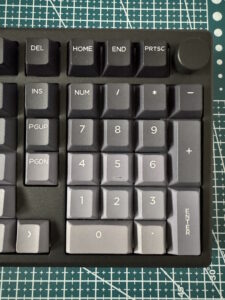 The Epomaker Galaxy 100 is heavy, maybe because it’s an aluminum body and has a heft battery. Anyway, it’s very heavy. Like I actually decided to weigh it, and it came in at just over 3.5lbs (1.6kg for the metric world). This means it is not going to shake, move, or shift when you’re bashing keys mid Helldivers 2 (my current go to game).
This is a full keyboard, with numeric keypad and volume control knob. They keys are not all the same color and instead gradient from light grey (spacebar row) to black (function keys). It actually looks good and the white keycap legends provide a good contrast.
As you can see, there’s also a volume control knob (top right) that you can press to mute audio, as well as the usual volume control features.
The battery on the Galaxy Lite is huge, 8000mAh, which is enough for months of use, yes months.
The Galaxy Lite sits firm on a desk, I didn’t stick on the included rubber feet, as it was firm on my desk. I will say it’s a wedge design and not height adjustable, but I am typing on it for this review and it’s comfortable.
In the Epomaker Galaxy 100 box you will find:
- Epomaker Galaxy 100 Lite keyboard
- keycap removal tool
- spare keycaps for MacOS (Windows keycaps installed)
- 2 extra switches
- stick on rubber feet for the keyboard
- braided USB A to USB C cable
- USB A dongle (attached to the cable)
- instruction guide
Wisteria Linear V2 Switches and Acoustics
I opted for the Wisteria Linear V2 switches, these are gasket switches. There’s good key travel, and have a 10,000Hz polling rate if you use the 2.4Ghz included dongle (or wired) connection. Polling drops to 125Hz on Bluetooth, but no serious gamer would use Bluetooth.
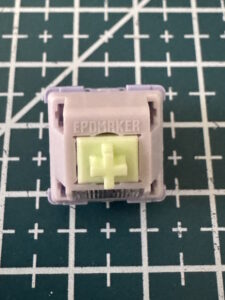 The Epomaker Galaxy Lite Trigger Force sits in the light‑linear range with a 45±3 gf actuation that keeps inputs controlled without feeling stiff. 62±5 gf bottom‑out gives it a firmer landing than the actuation number suggests, so it avoids the hollow feel some light switches have. 2.0±0.3 mm pre‑travel keeps it responsive, and the 3.6±0.3 mm total travel stays close to a standard linear profile. The 20.4 mm spring adds a steady return without any sharp snap.
They keys are not loud and clicky – I was actually surprised. Even as a I type this, you can’t hear the click of a switch, it’s more a snap-tap as the keys complete the travel. It sounds nice.
The switches on the Galaxy Lite are hot swappable, for either 3 or 5 pin switchers. Which is very good for a keyboard at this price (about USD$100 on Amazon). It was easy to remove the switches with the include tool.
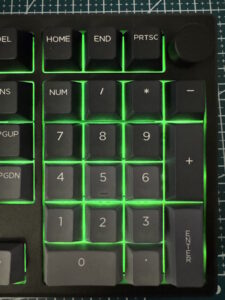
For what it’s worth, the RGB backlights are south facing.
Epomaker Galaxy Drivers and Connectivity
 Epomaker don’t have drivers (as such) they use VIA Configuration paired with their own JSON file to customize backlighting, etc. This is a good open standard, and Epomaker recommend the WestBerryVIA on Github. This means there a Windows, MacOS, and Linux executables. You can find the Epomaker Galaxy 100 Lite JSON file (needed for the software) here.
I changed my backlights from the default rainbow wave to solid green. I prefer solid backlight vs all the hundreds of options available to you in VIA. The backlights are clean, solid, with no fading.
VIA isn’t necessarily user friendly if you’re a first time user and the Epomaker instructions are a bit light, so here’s a walk through guide for getting your Epomaker Galaxy 100 Lite working with Via for everyone else.
Epomaker Galaxy 100 Lite VIA Setup Guide
- Download the appropriate VIA release from Github and install it.
- Download the Epomaker Galaxy Lite 100 JSON file here. This is a zip file, you will need to unzip it, you will need the “Epomaker Galaxy100 Lite.JSON” file.
- Connect the Galaxy Lite via the USB cable and make sure the switch is centered (not selected as Bluetooth or Dongle)
- Launch VIA (it’s the brown Spongebob looking icon).
- Don’t panic, your Epomaker won’t be detected (yet)…
- In the top navbar, click the Settings icon (gear icon).
- Turn on “Show Design Tab”
- Now click the Paintbrush icon.
- Click the upload icon, and upload the JSON file.
- You will see a picture of your Epomaker Galaxy 100 (yay!).
- Click Configure and you can customize RGB, Macros, etc.
- You’re done!
Tip: If you run into issues, sometimes you sometimes need to also click Load Draft Definition and upload the JSON file again. Then click Configuration.
If you’re not one to download drivers, I use the web-based VIA alternative on my work PC. Although you can’t customize RGB on the webUI.
In terms of general connectivity, the Galaxy 100 Lite keyboard can connect via wired, dongle, or Bluetooth. You can actually pair it to 2 devices at once (one 2.4Ghz, and 1 Bluetooth) if you want to hot swap between devices.
Final Thoughts and Verdict
The Epomaker Galaxy 100 is a powerful VIA compatible mechanical keyboard at an awesome price (around USD$100 on Amazon). If you’re familiar with VIA or willing to learn, you can do some amazing things (macros, layers) but out of the box it’s a great keyboard. Also, as a dual PC/MacOS user I just love that Epomaker provides the keys for both.
Official Site if you want to learn more about Epomaker Galaxy 100 Lite or grab it from Amazon.
Hope this helps someone else!
Any and all advice, guides, and reviews are unbiased and based on my personal experience. If you buy through affiliate links, I may earn commissions, which helps support my website. This does not have an impact on posts or my opinion of any reviewed products. If you find this post helpful and want to say thanks, please buy me a coffee or take a look at my book on Amazon. It keeps this page ad-free. Thank you!